

This article contains affiliate links. If you sign up through them, we may earn a commission at no extra cost to you. See our affiliate disclosure.
Nothing ruins an online match faster than lag. You press a button and nothing happens, enemies teleport across the screen or you get kicked from a ranked game. Most of the time, the cause is high ping, packet loss or jitter on your connection.
The good news is that you can fix most lag yourself, often for free. This guide covers the fixes that work, in order from easiest to most advanced, for PC, console and mobile gamers.
The short version: use a wired Ethernet connection, restart and update your router, close background downloads, pick the closest game server and turn on QoS or gaming mode on your router. If you still lag because of bad routing between you and the game server, a game booster like GearUP can help find a more stable path.
What ping, packet loss and jitter mean
- Ping (latency) is how long data takes to travel from your device to the game server and back, measured in milliseconds (ms). Under 50 ms feels great, 50 to 100 ms is playable, and over 150 ms starts to feel laggy in fast games.
- Packet loss happens when some data never arrives. Even 1% to 2% can cause rubber-banding and missed shots.
- Jitter is how much your ping jumps around. A steady 70 ms often feels better than a ping that swings between 30 and 200 ms.
You can check all three with a free online speed test that shows latency and jitter, or with the network stats overlay many games include in their settings.
Step 1: Switch to a wired connection
Wi-Fi is the most common cause of lag. Walls, distance, microwaves and your neighbors’ networks all cause interference and jitter. An Ethernet cable from your PC or console to the router is the single best fix. If running a cable isn’t possible, a powerline adapter or a mesh Wi-Fi system is the next best option.
Step 2: Restart and update your router
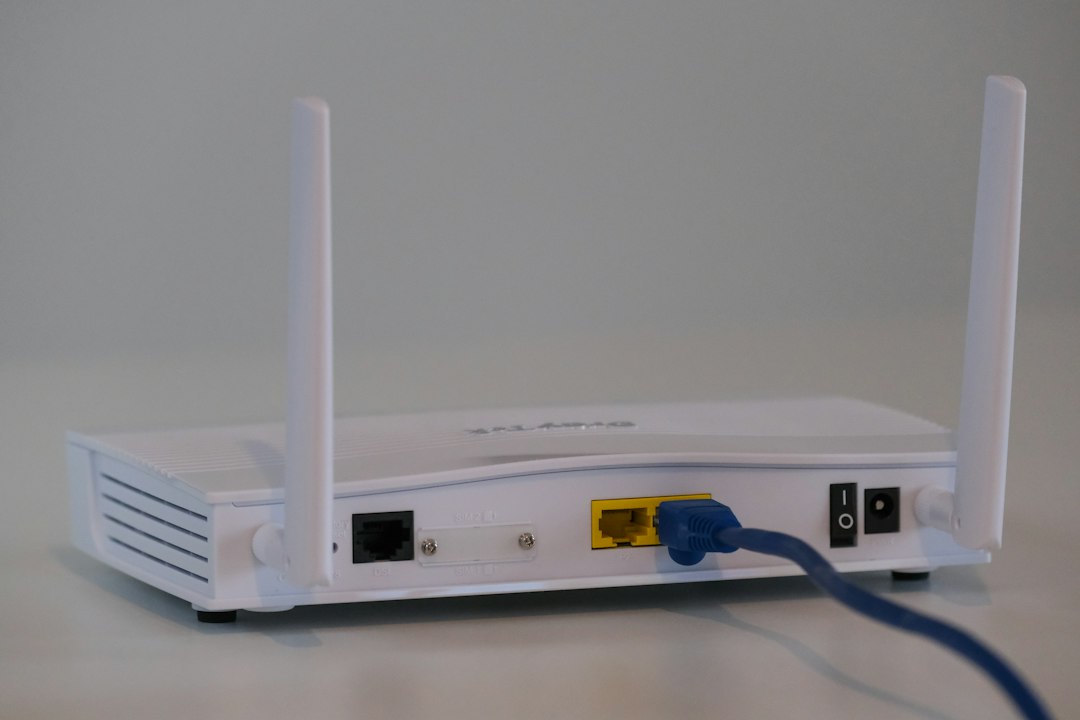
Unplug your modem and router for 30 seconds, then plug them back in. While you’re at it, log in to your router’s app and install any firmware updates. If your router is more than five years old, it may be time to upgrade. Our guide to whether a Wi-Fi 7 router is worth it explains what to look for.
Step 3: Stop other devices from hogging bandwidth
Streaming 4K video, cloud backups, game updates and video calls on other devices can all spike your ping. Before you play:
- Pause big downloads and updates on your PC, console and phones.
- Close background apps like browsers, Discord screen sharing, OneDrive or Dropbox if you don’t need them.
- Ask others at home to avoid 4K streaming during important matches.
Step 4: Turn on QoS or gaming mode
Many routers have Quality of Service (QoS) or a gaming mode that puts game traffic ahead of everything else on your network. Look for it in your router’s app or settings page and set your gaming device as the top priority.
Step 5: Choose the closest game server
Ping depends heavily on distance. In the game’s settings, pick the server region closest to you, such as US East or US West, instead of “auto.” If your friends live far away, playing on their region will always add some lag.
Step 6: Check your internet plan and provider
If your ping is high in every game and every speed test, the problem may be your internet service:
- Fiber and cable usually have the lowest latency. Satellite and some fixed wireless plans have much higher ping.
- Run a speed test while connected by cable. If results are far below what you pay for, contact your provider.
- Ask your provider if there are known outages or line problems in your area.
Step 7: Try a game booster for routing problems
Sometimes your home setup is fine, but the route your data takes to the game server is not. Internet traffic can bounce through crowded or indirect paths, which adds ping and packet loss, especially at peak hours or when you connect to servers far away. That’s where a game booster can help.
GearUP Booster
GearUP Booster is a game booster that routes your game traffic through its own network of servers and automatically looks for a more stable path to the game server. It’s designed to lower ping and reduce packet loss and jitter.
Key features:
- Works across devices. There are versions for Windows PC and mobile, plus options for consoles like PlayStation, Xbox and Nintendo Switch.
- Supports thousands of games, including popular titles like Fortnite, Valorant, Call of Duty and League of Legends.
- Simple to use. You pick your game and server region, and it handles the routing for you. No complicated network settings.
- Free trial. You can test it with your own games and connection before paying.
Keep in mind:
- A booster can’t fix weak Wi-Fi, an overloaded home network or an internet outage. Do Steps 1 to 6 first.
- Results vary by game, location and internet provider. The free trial is the best way to see if it helps you.
- It’s a paid subscription after the trial, so check current pricing on the GearUP website.
Gear that helps with lag (Amazon)
- Cat 6 Ethernet cables
- Flat Ethernet cables for long runs
- Powerline Ethernet adapters
- Gaming routers
- Mesh Wi-Fi systems
As an Amazon Associate, Latest In Trend earns from qualifying purchases. Prices and availability change often, so check the current price on Amazon.
Quick fixes for console and mobile gamers
- Console: use Ethernet, turn off background downloads in your console settings and enable your router’s QoS for the console.
- Mobile: stay close to your router, use 5 GHz Wi-Fi when possible and turn off auto-updates and background app refresh while playing. On cellular, 5G usually has lower ping than 4G LTE.
Shopping for a gamer?
A long Ethernet cable or powerline adapter makes a surprisingly welcome gift for anyone who complains about lag. See more ideas in our guide to the best gifts for gamers in 2026.
The bottom line
Most lag comes from Wi-Fi interference, busy home networks or far-away servers, and you can fix those for free with a cable, a router restart, QoS and the right server region. If you’ve done all that and still see ping spikes or packet loss, a game booster like GearUP is worth trying with its free trial. Want more tech tips? See our guide on how to secure your smart home devices, since a cleaner home network also helps your games.
Features and pricing can change, so check the GearUP website for current details. Results depend on your location, game and internet connection.



Leave a Reply